
Unload at a hub
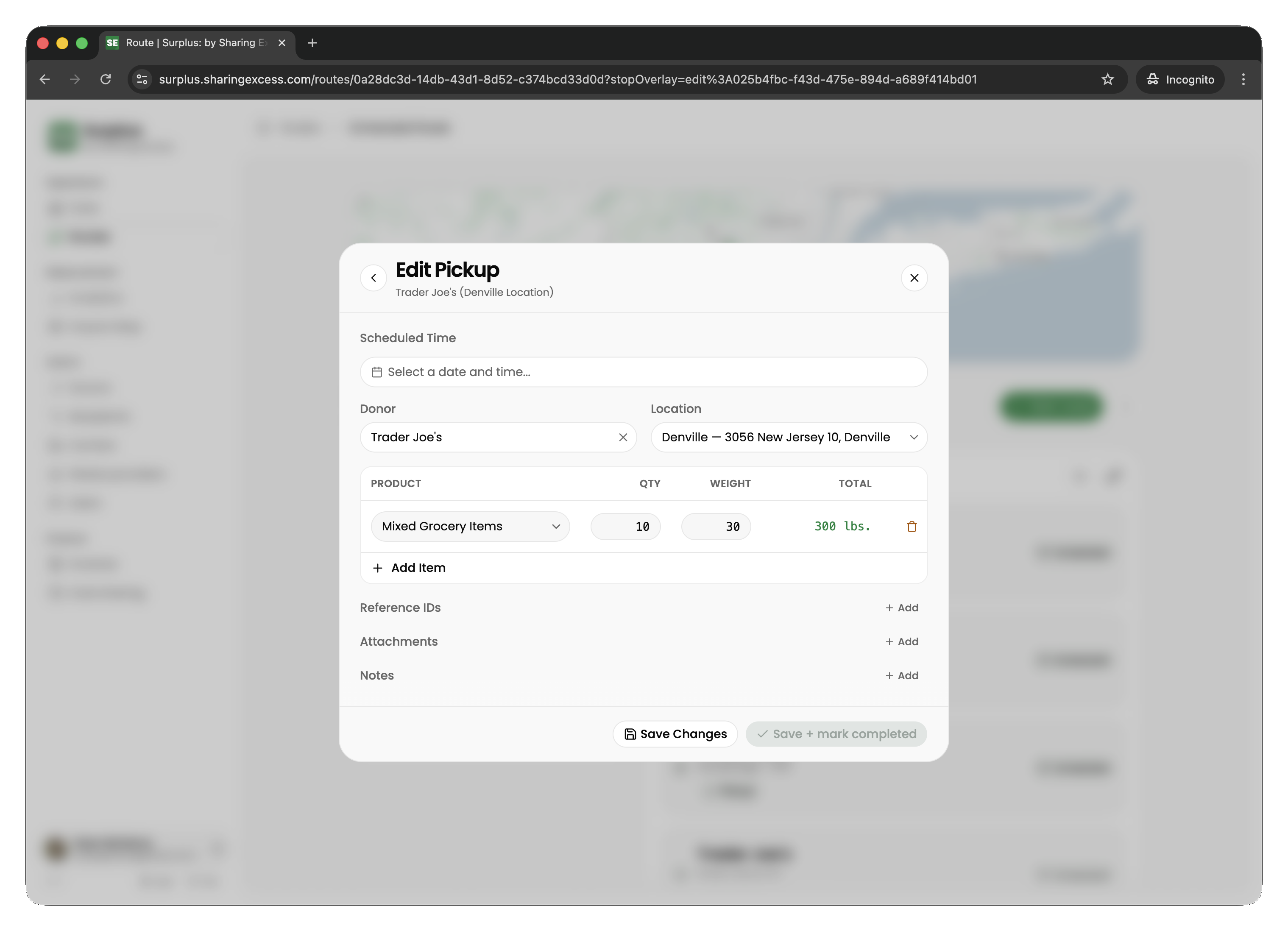
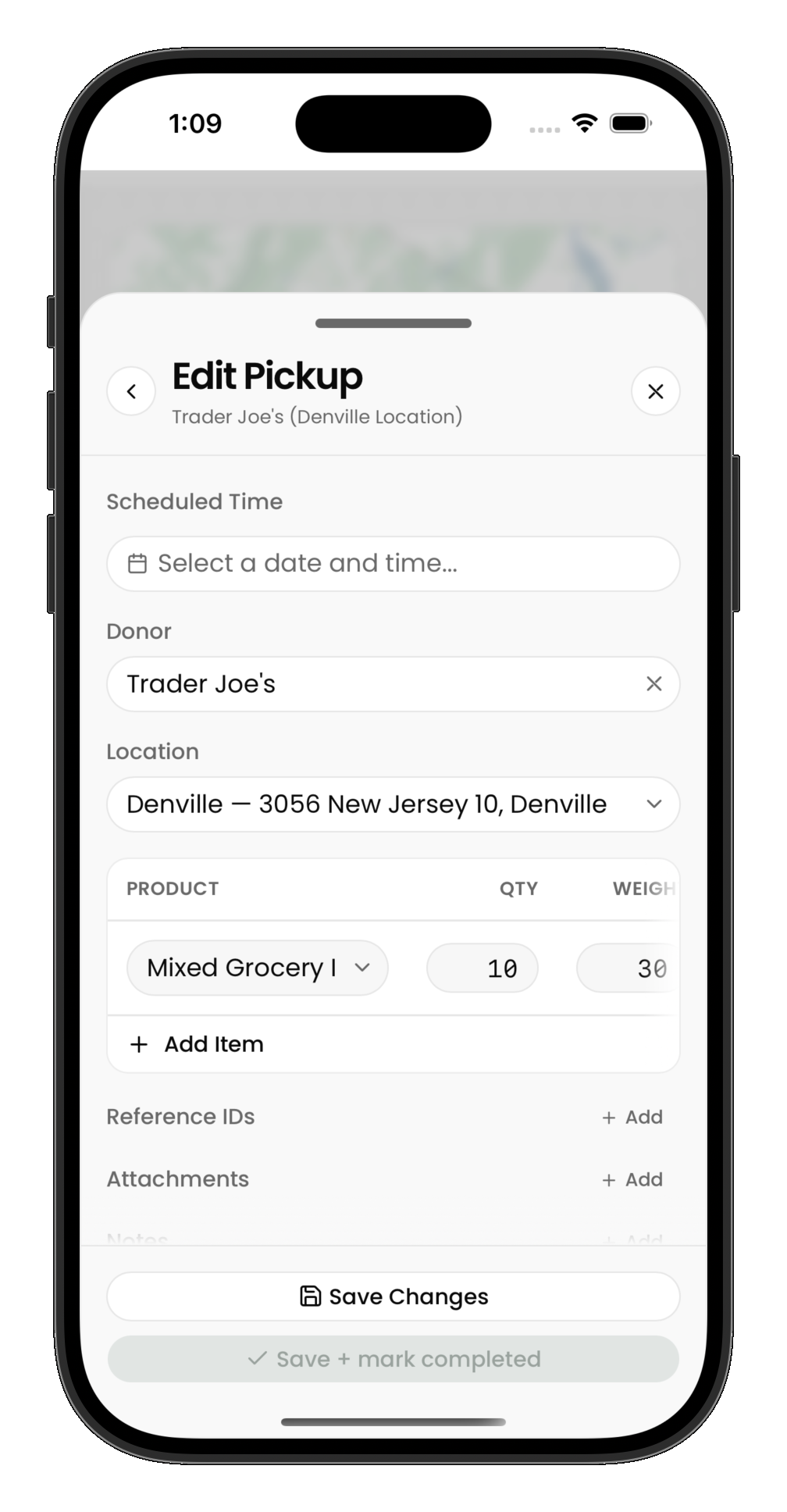
At an unload stop, you're dropping items off at a hub. Select which items from your vehicle to unload, then mark the stop complete.
What to do
- Navigate to the hub location
- Select the items from your vehicle to unload
- Confirm quantities for each item
- Mark the stop as complete
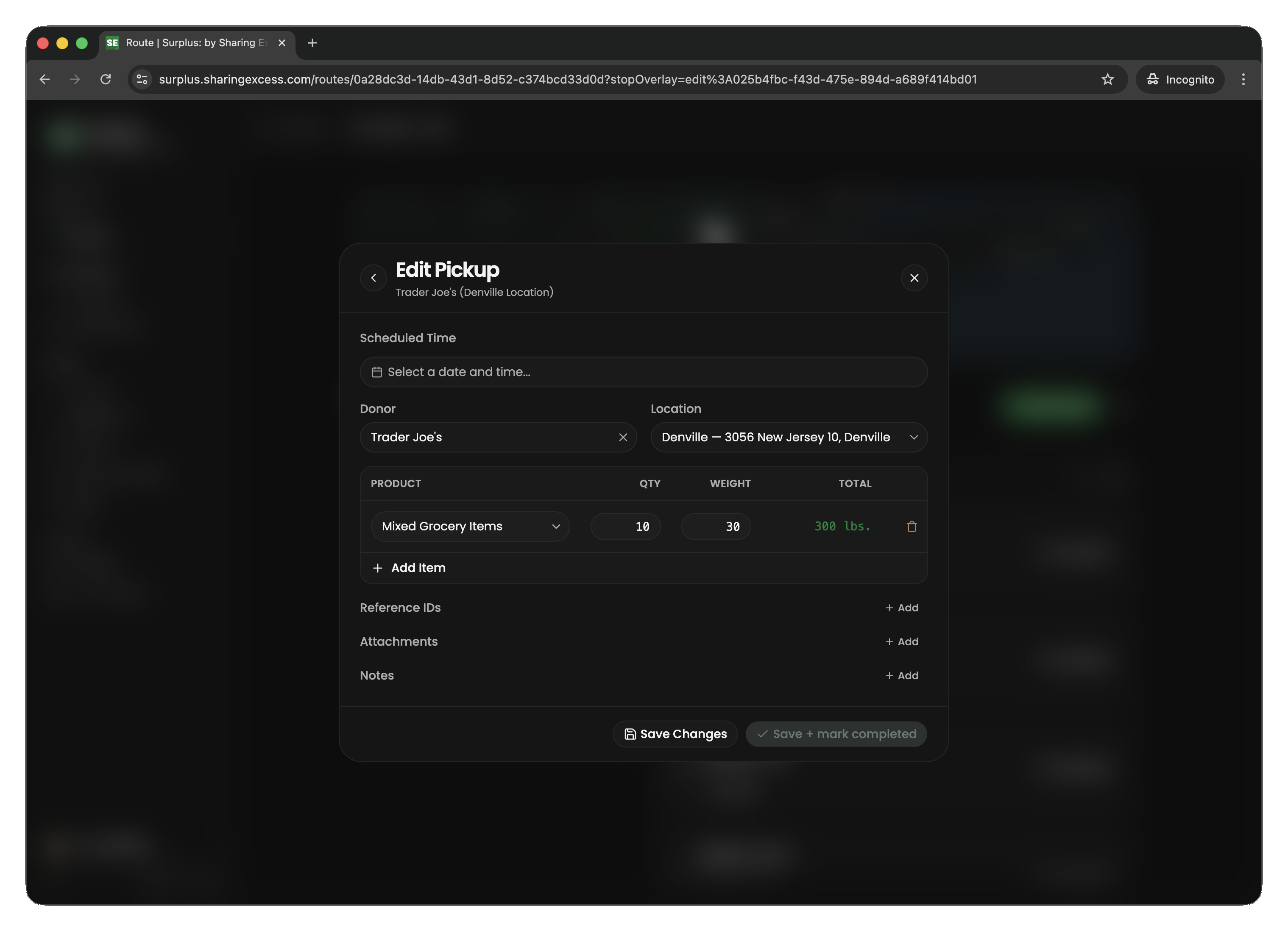
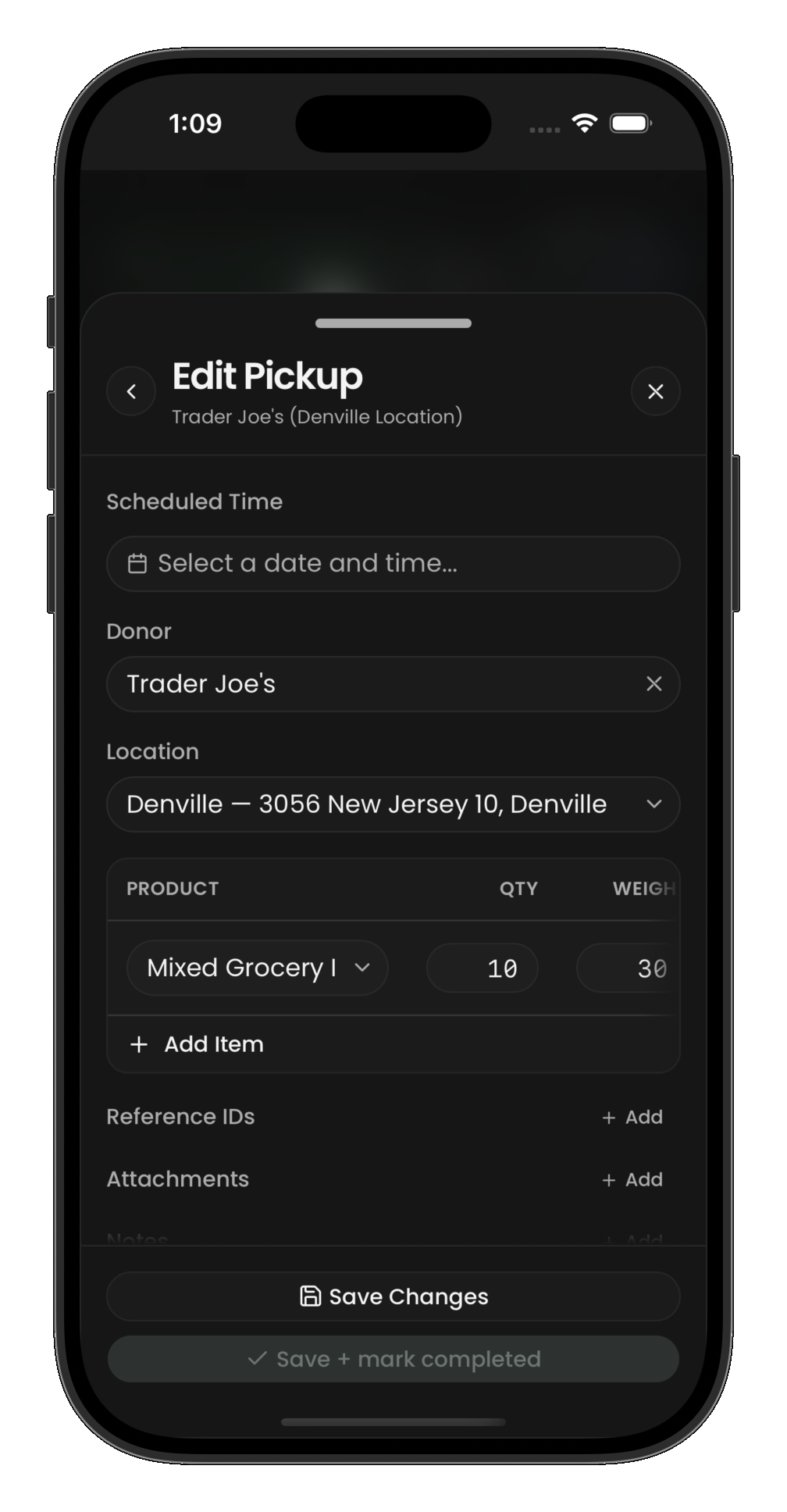
The unload flow uses the same stop-editing screen as pickups and loads — you select items and confirm what is leaving your vehicle.
After all stops
Once every stop is complete and your vehicle is empty, you can finish the route. If you still have items on your vehicle, you'll need to unload them at a hub or deliver them before the route can be marked complete.