
Monitor active routes
When a driver activates a route, its status changes from scheduled to active. Admins use the routes list and route detail views to monitor progress in real time.
Finding active routes
Open the Routes section and filter by Active status. Each route card shows its date, stop count, assigned drivers, and how many stops remain.
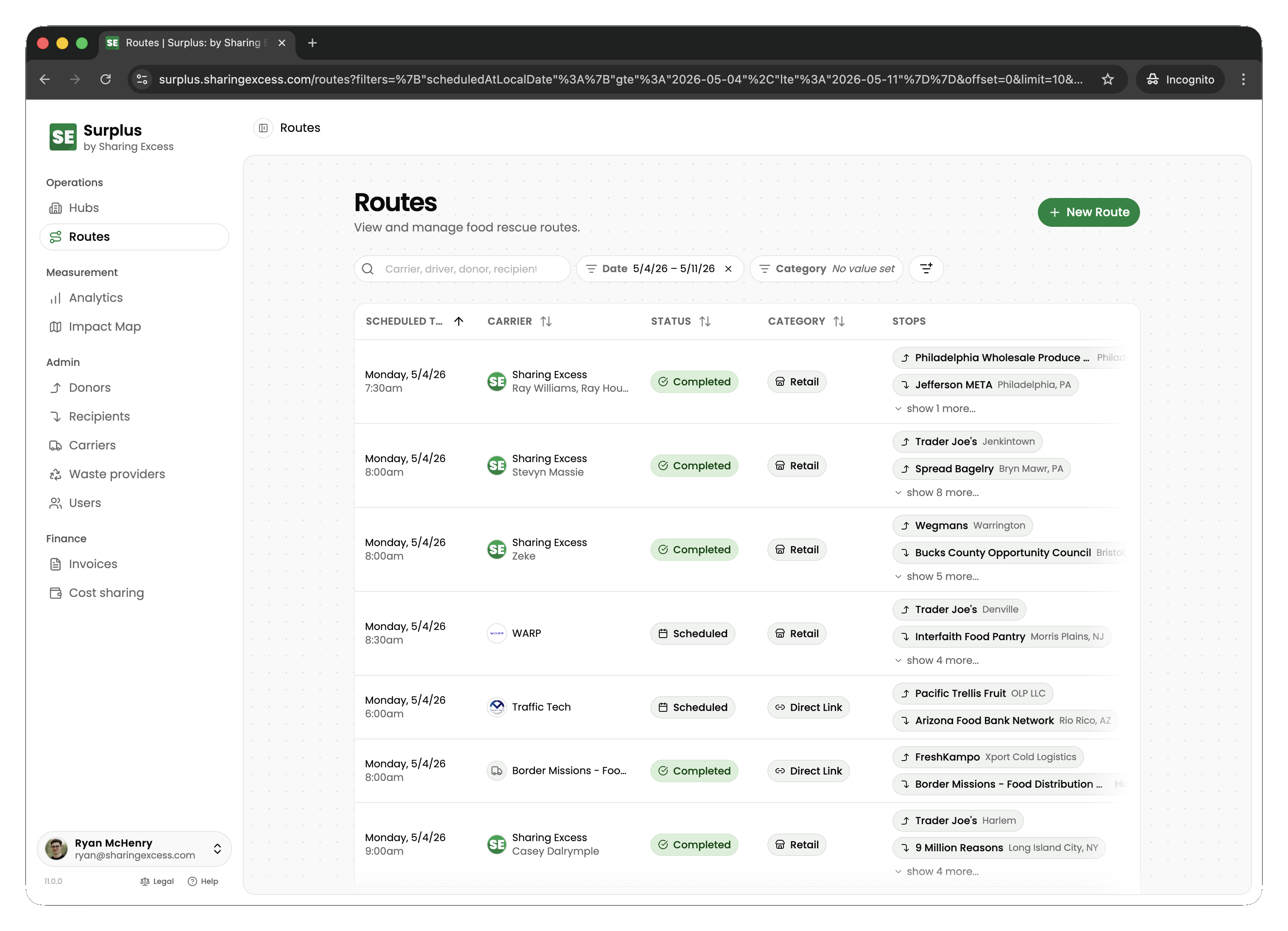
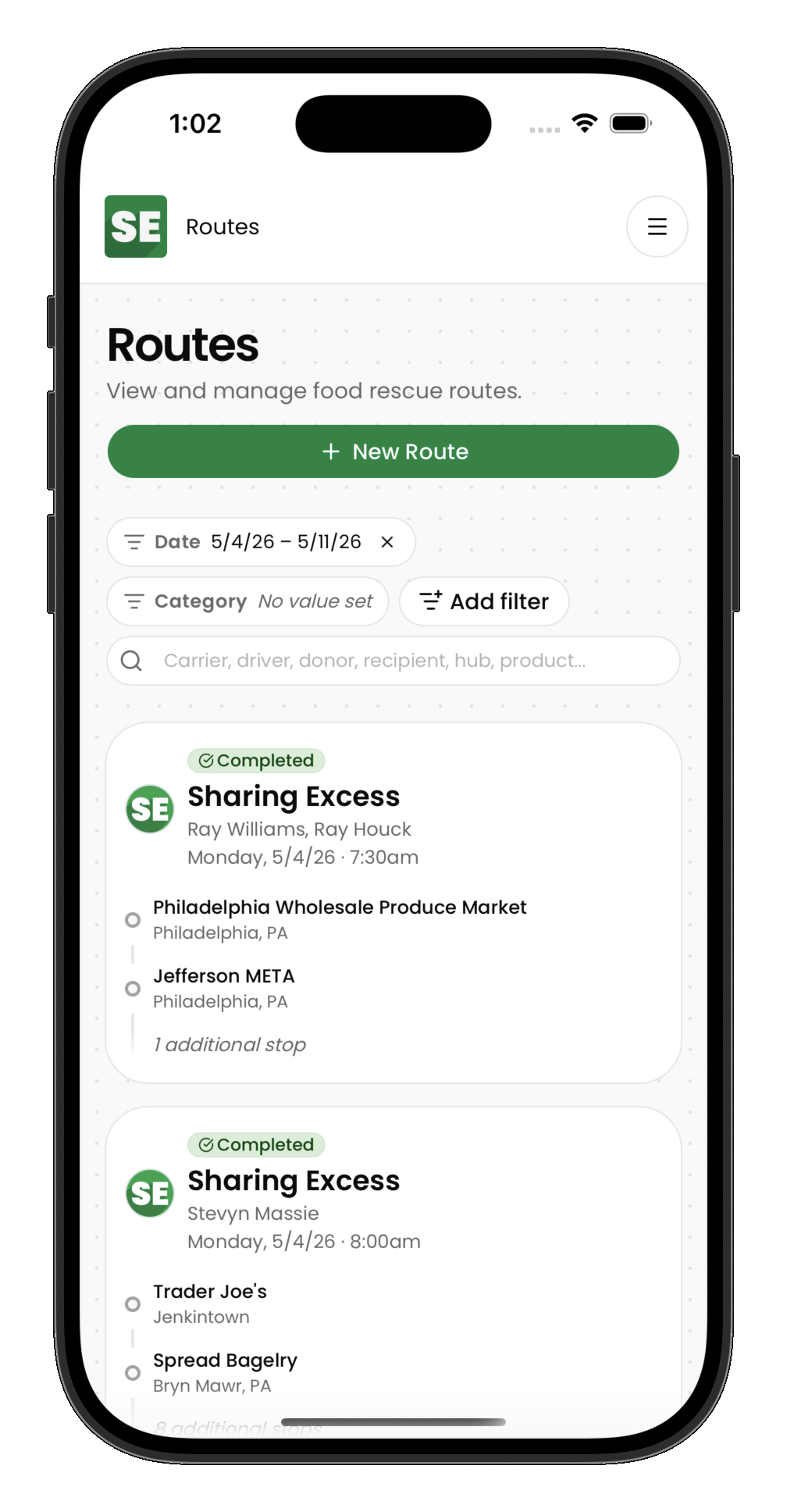
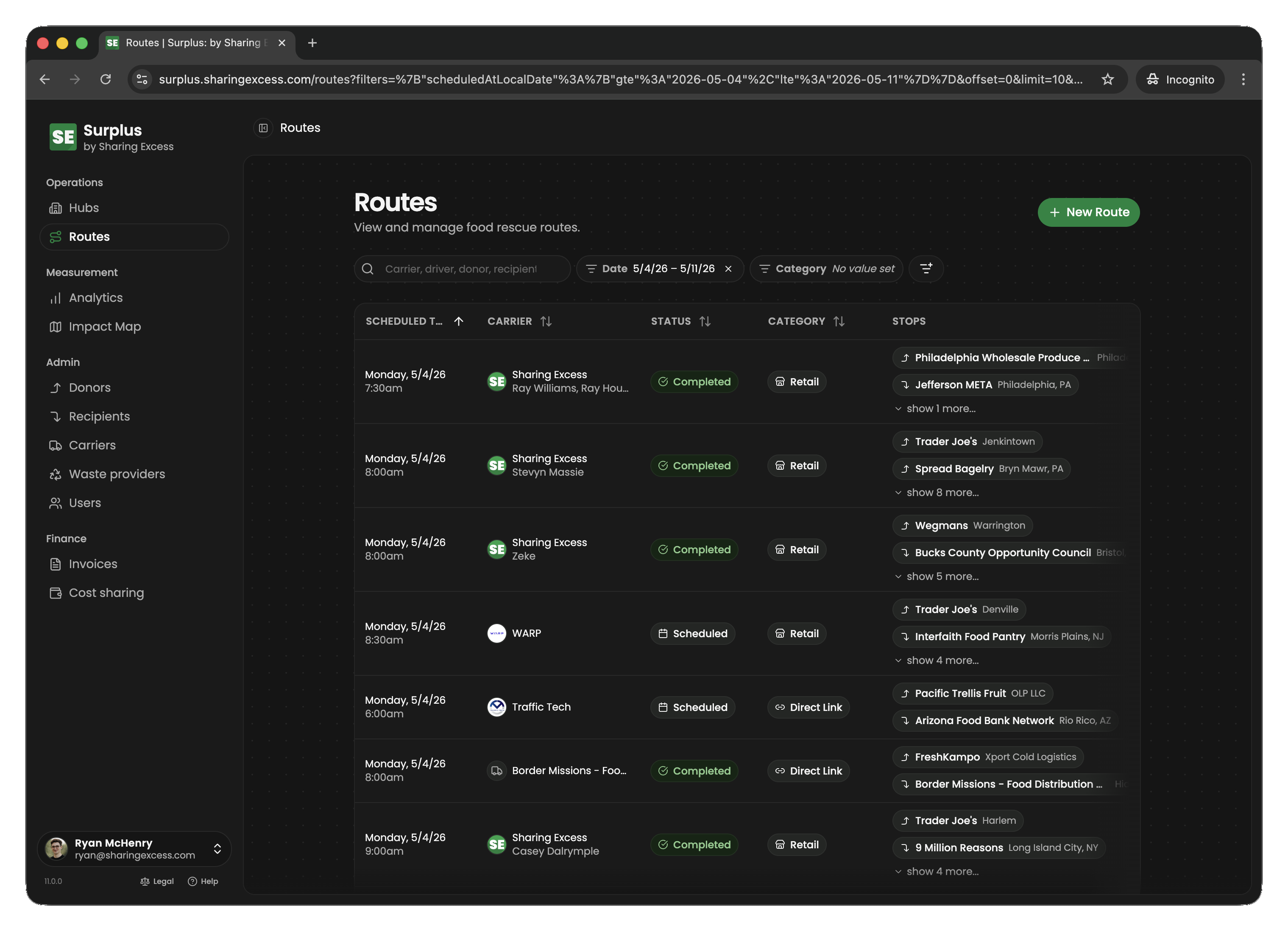
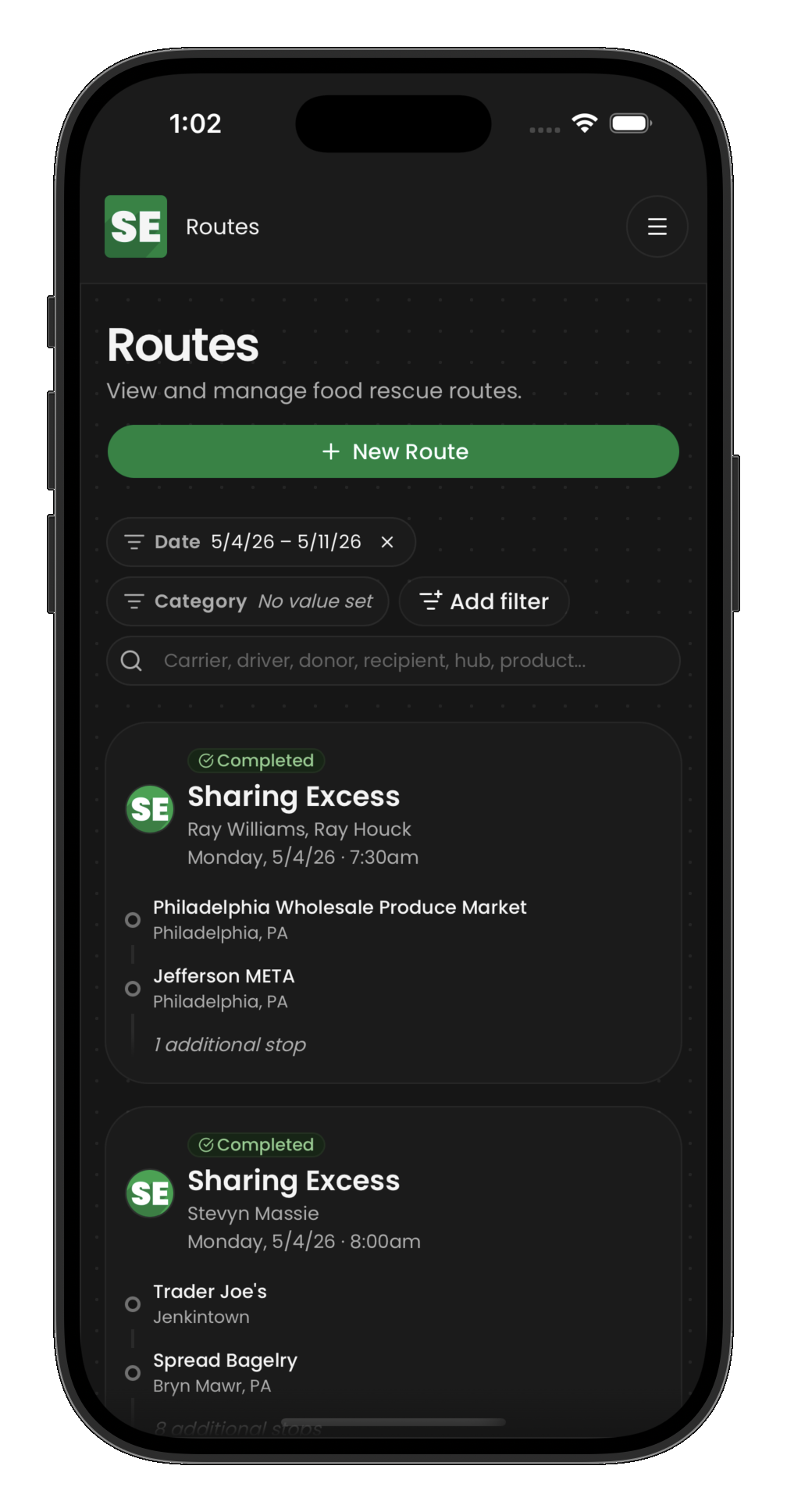
Route detail during execution
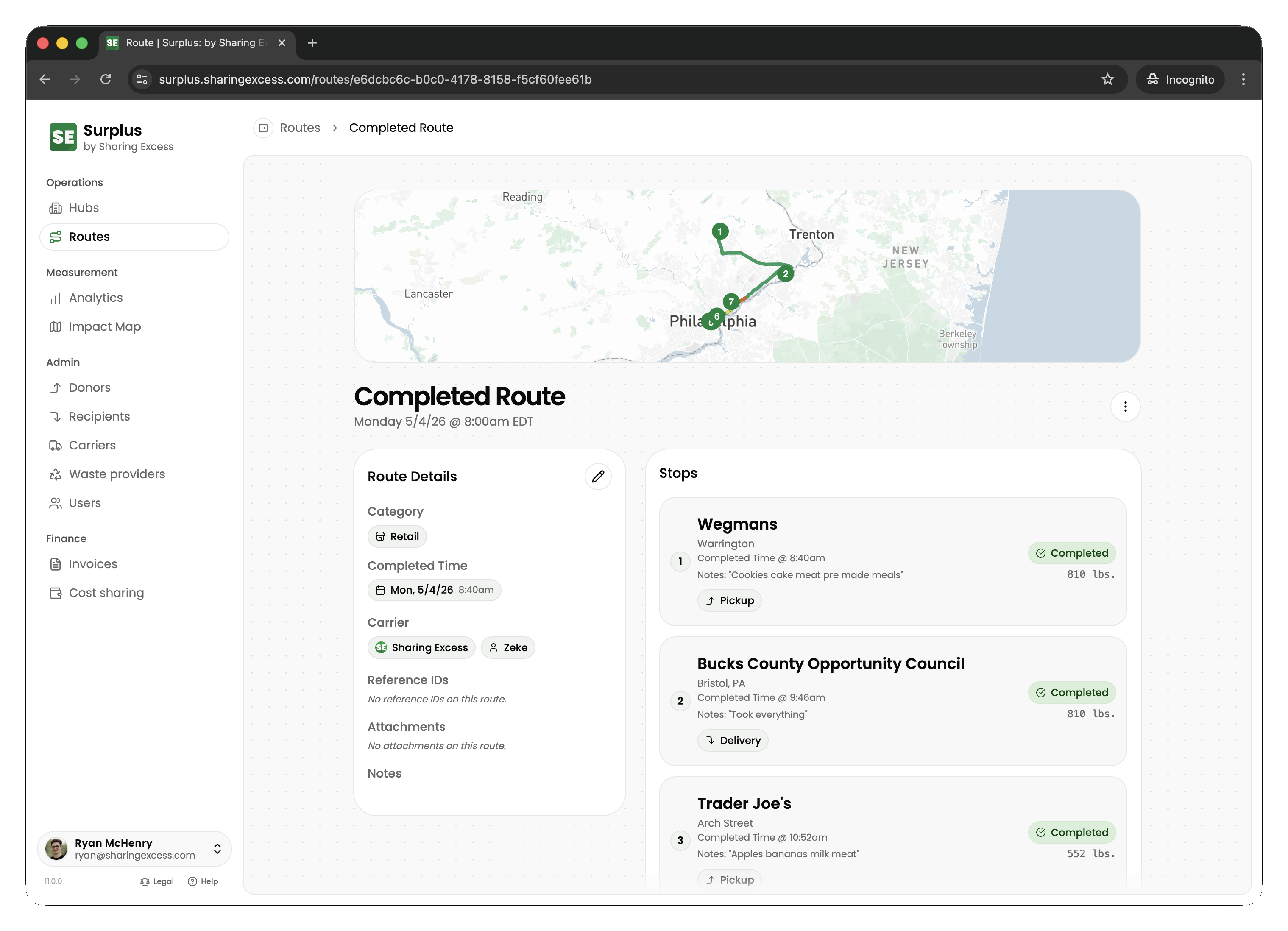
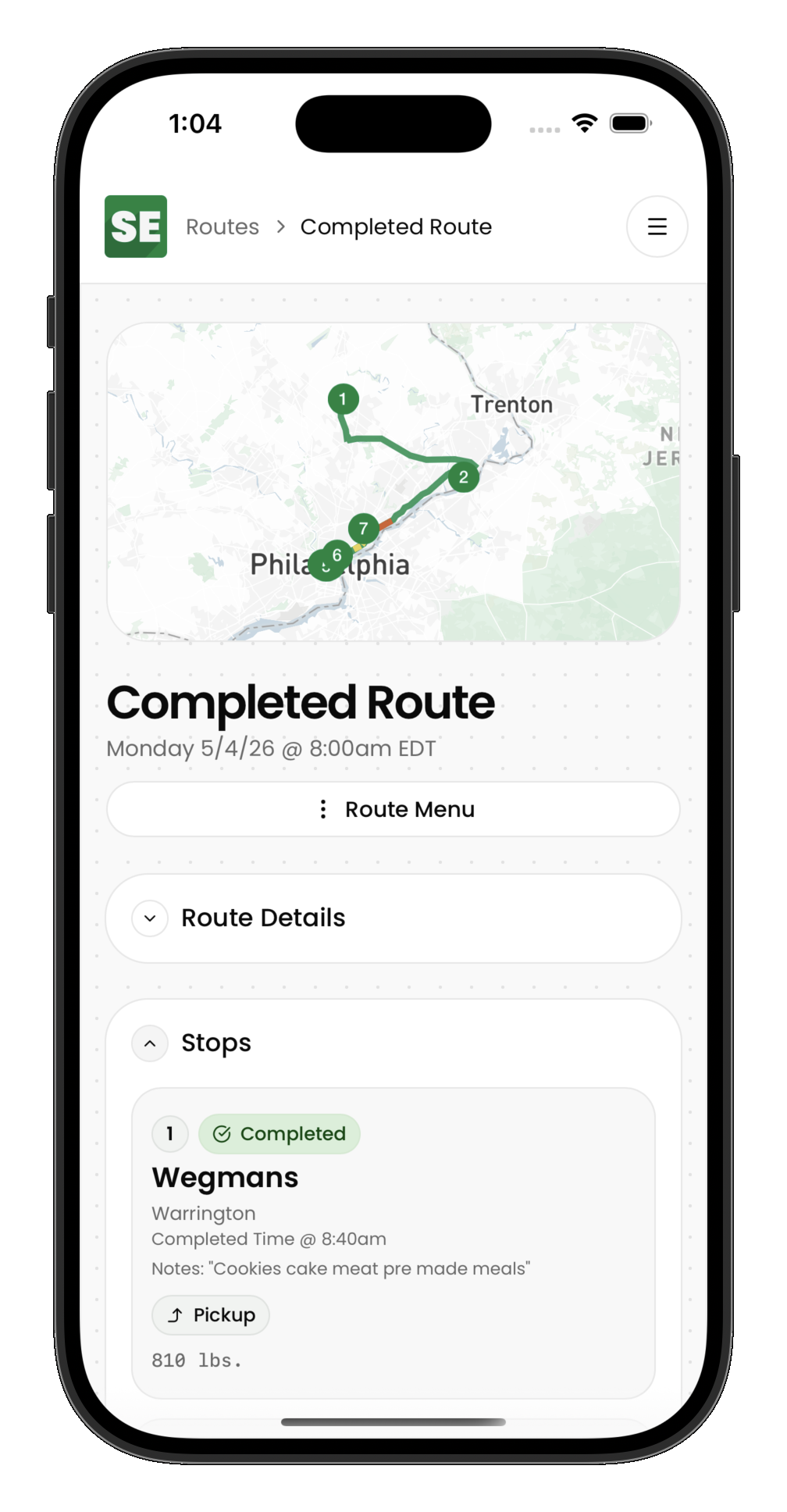
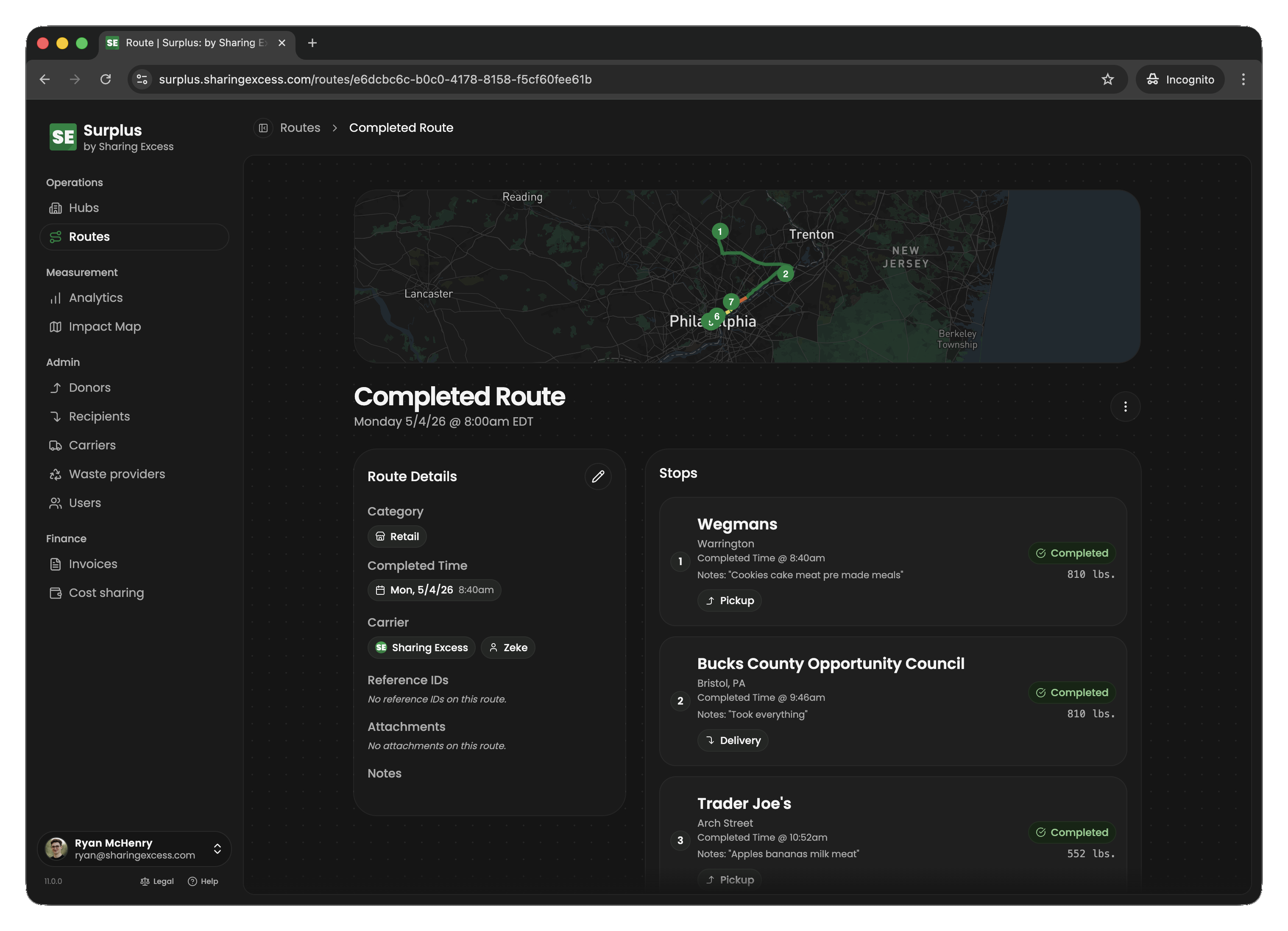
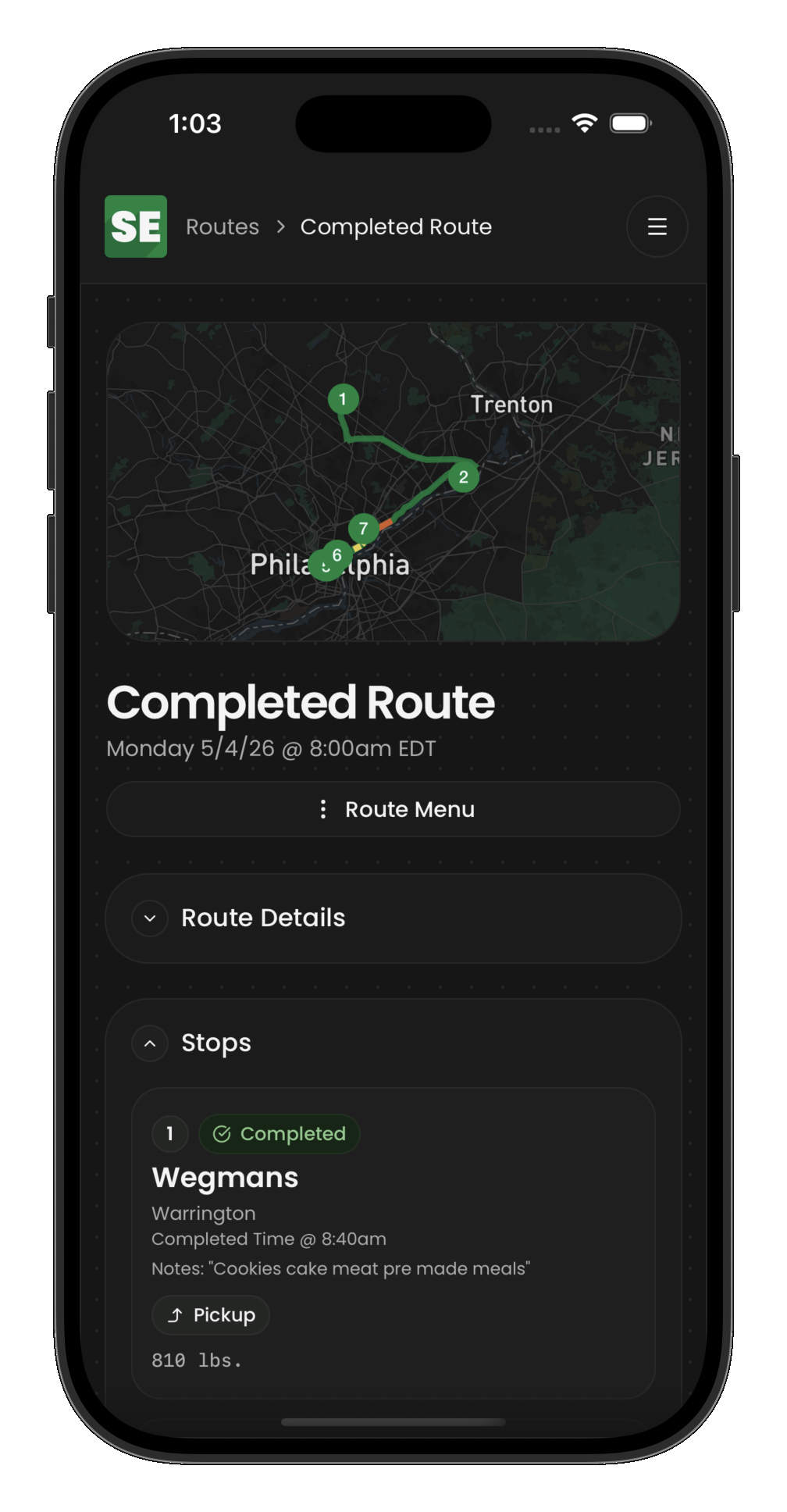
Open an active route to see each stop's status — scheduled, completed, or cancelled — along with timing and assigned events.
What to watch for
- Stops out of order — drivers cannot skip ahead; if progress stalls, check whether an earlier stop needs cancellation
- Empty collections — donors with nothing to give may need a stop cancelled so the driver can proceed
- Vehicle not empty — a route cannot finish while items remain on the vehicle; the driver may need an unload stop
When something goes wrong
Use Handle route exceptions to cancel individual stops, cancel entire routes, or un-complete events for corrections.