
Create a route
Routes are the backbone of field logistics in Surplus. This guide covers creating a new route and configuring its initial stops.
The routes list
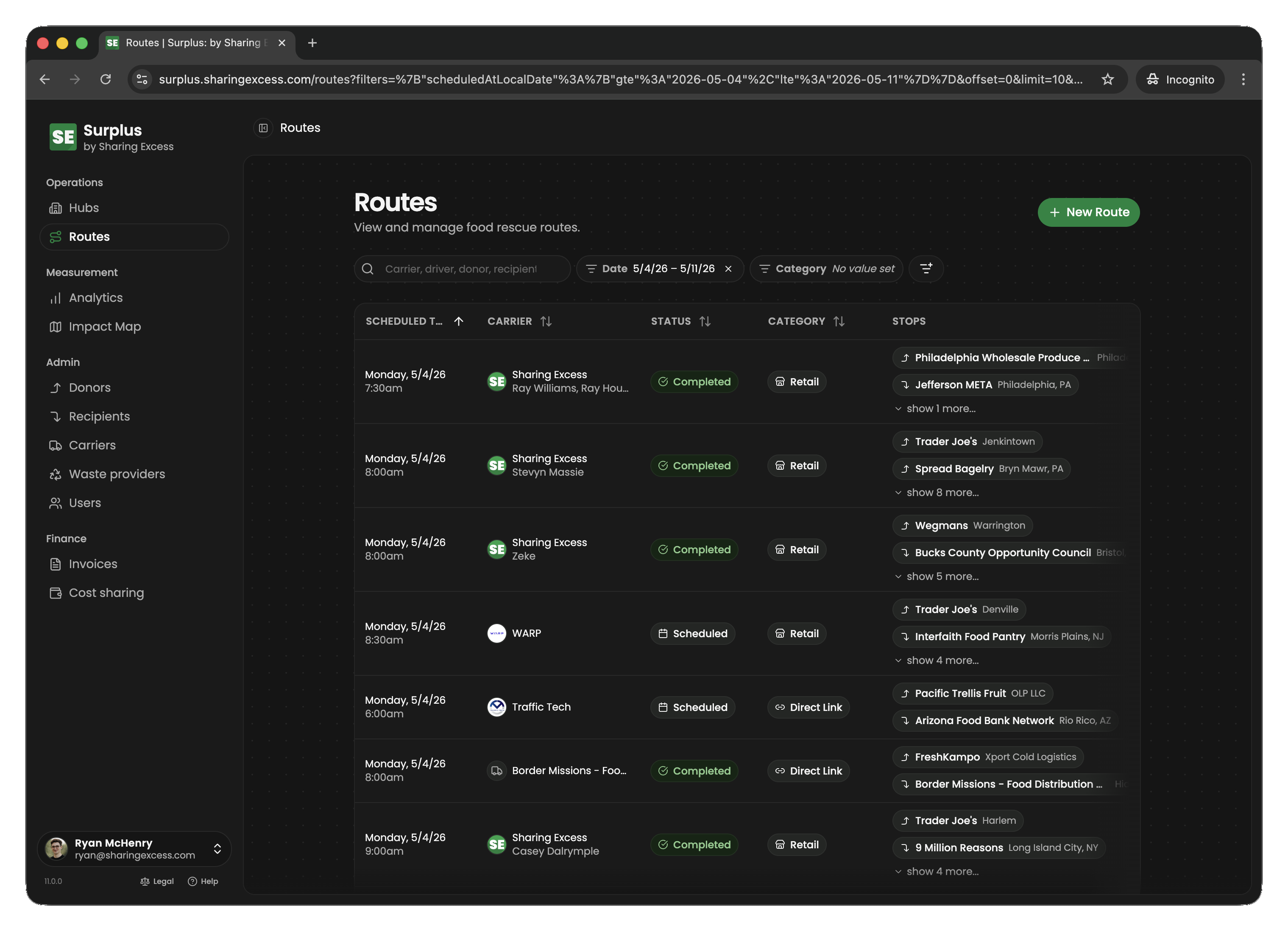
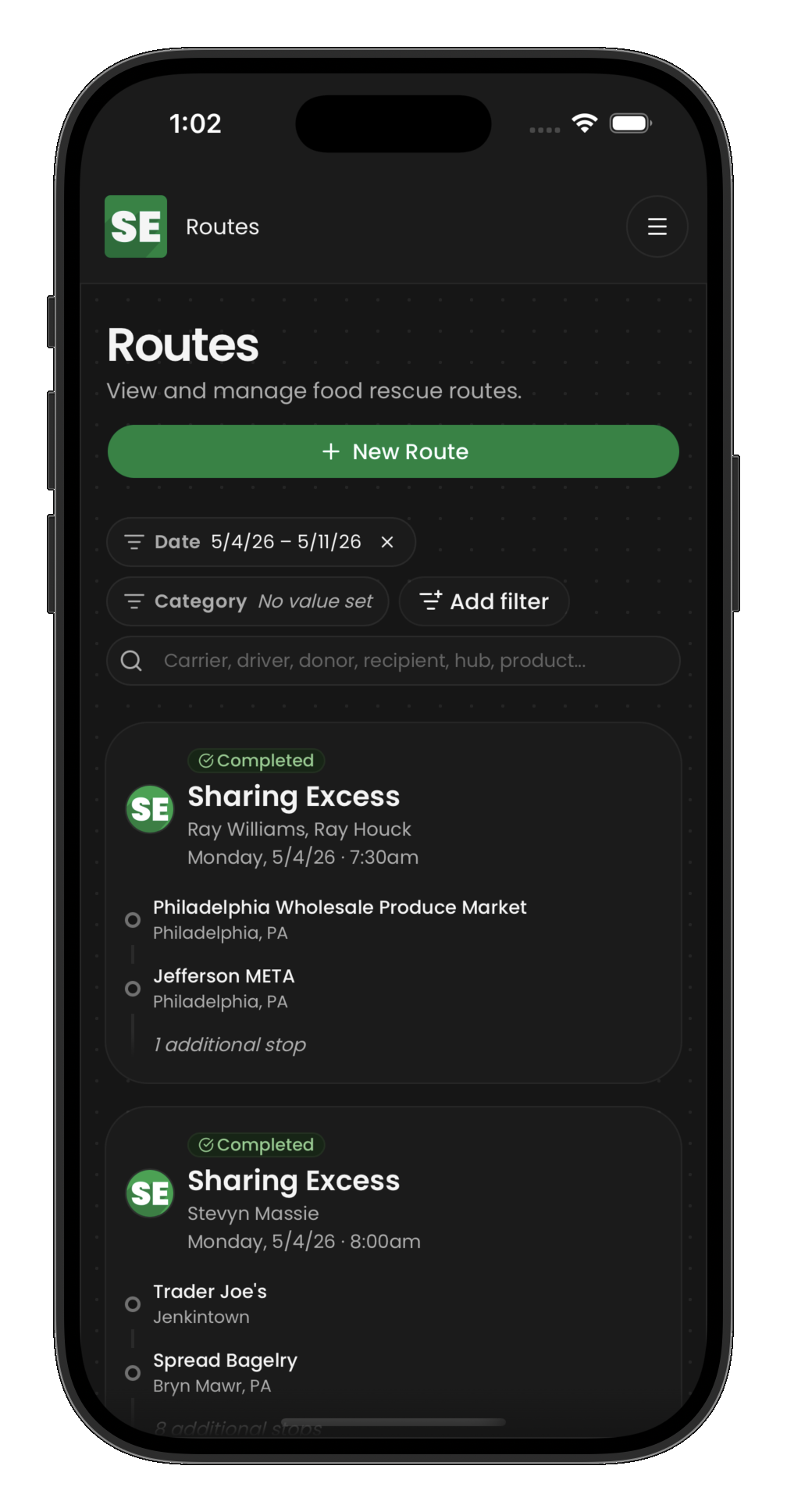
The routes section shows all routes in the system, filterable by date, status, and other criteria. Each route card shows its date, stop count, assigned drivers, and current status.
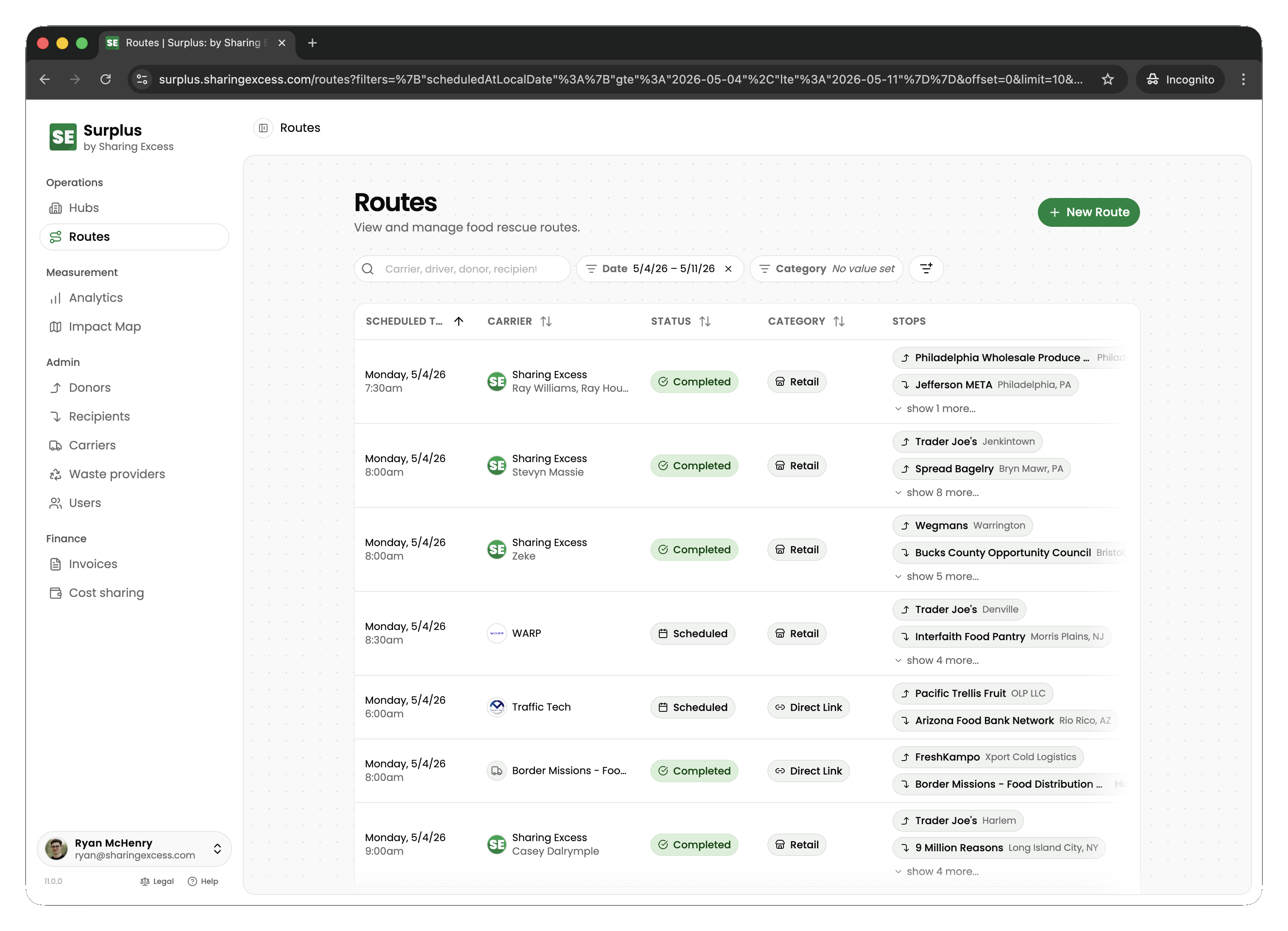
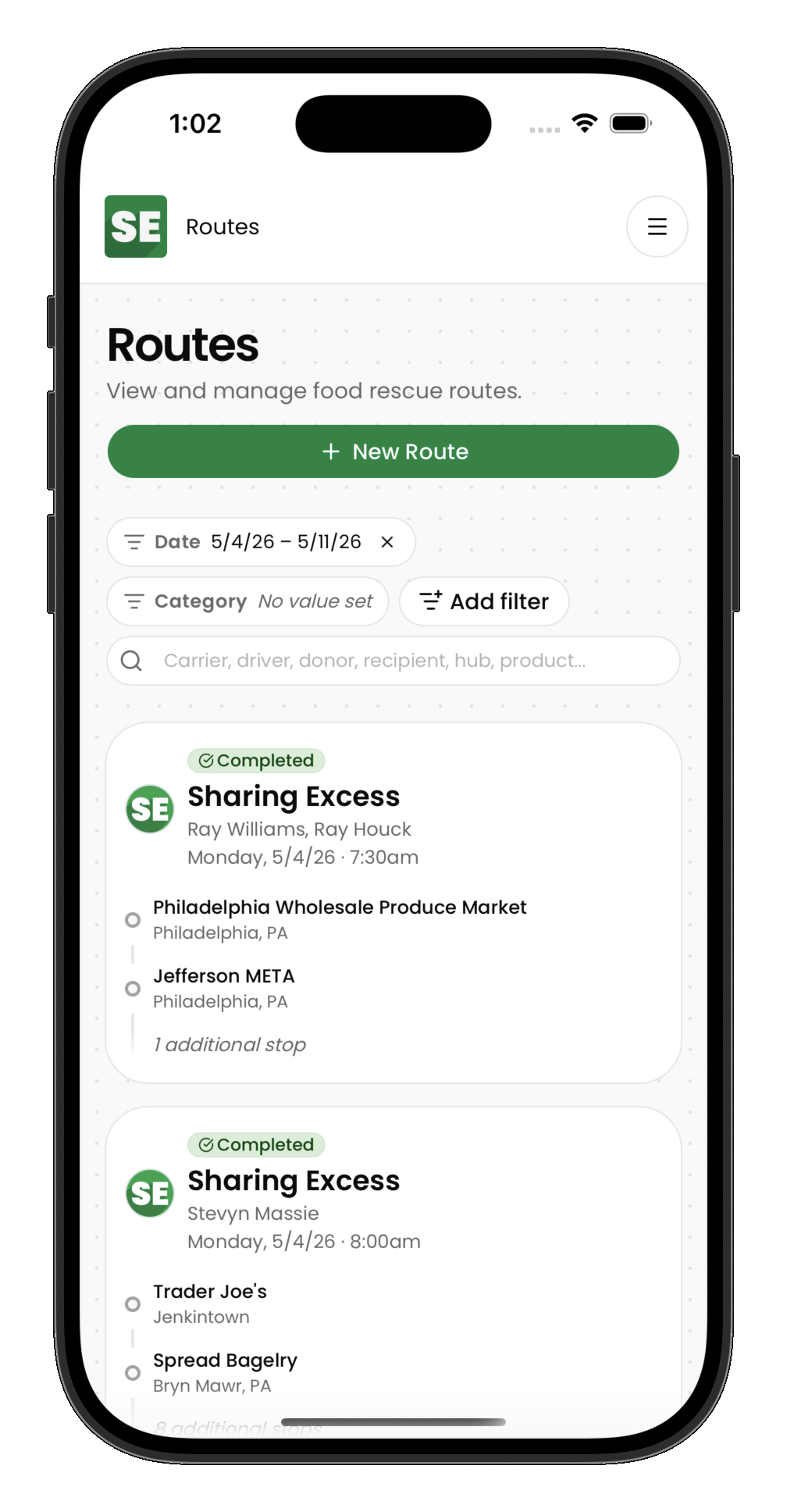
Creating a route
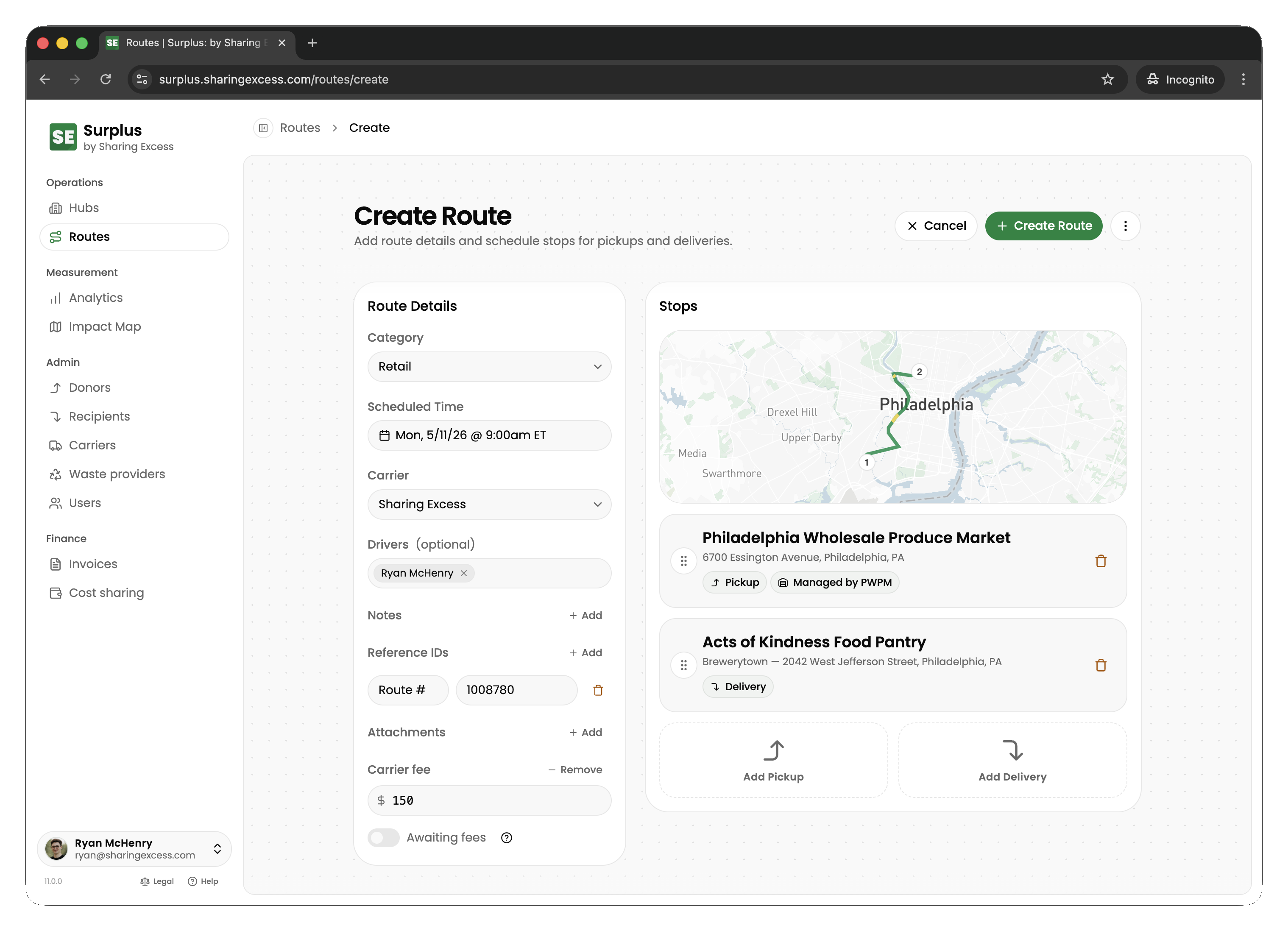
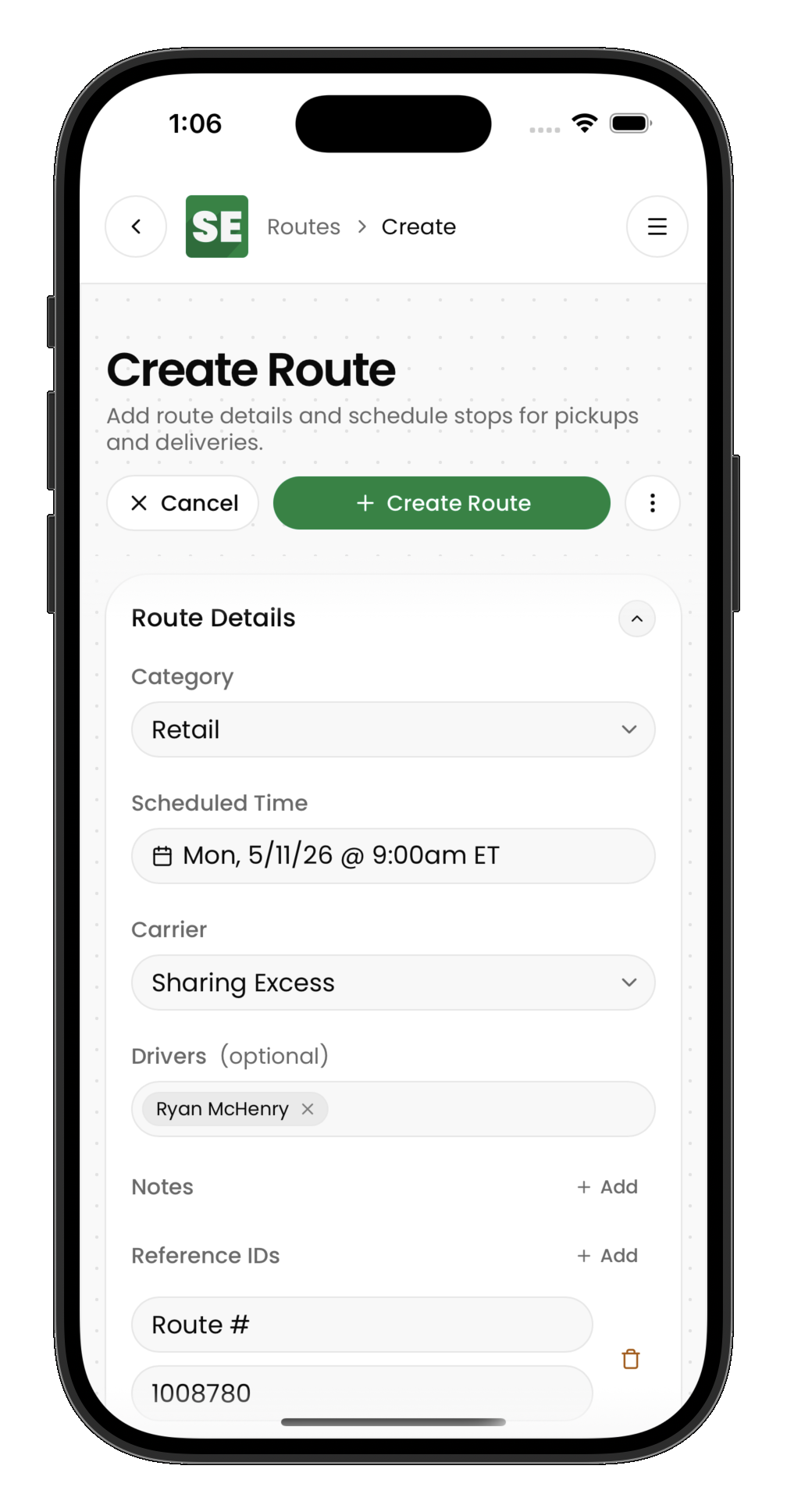
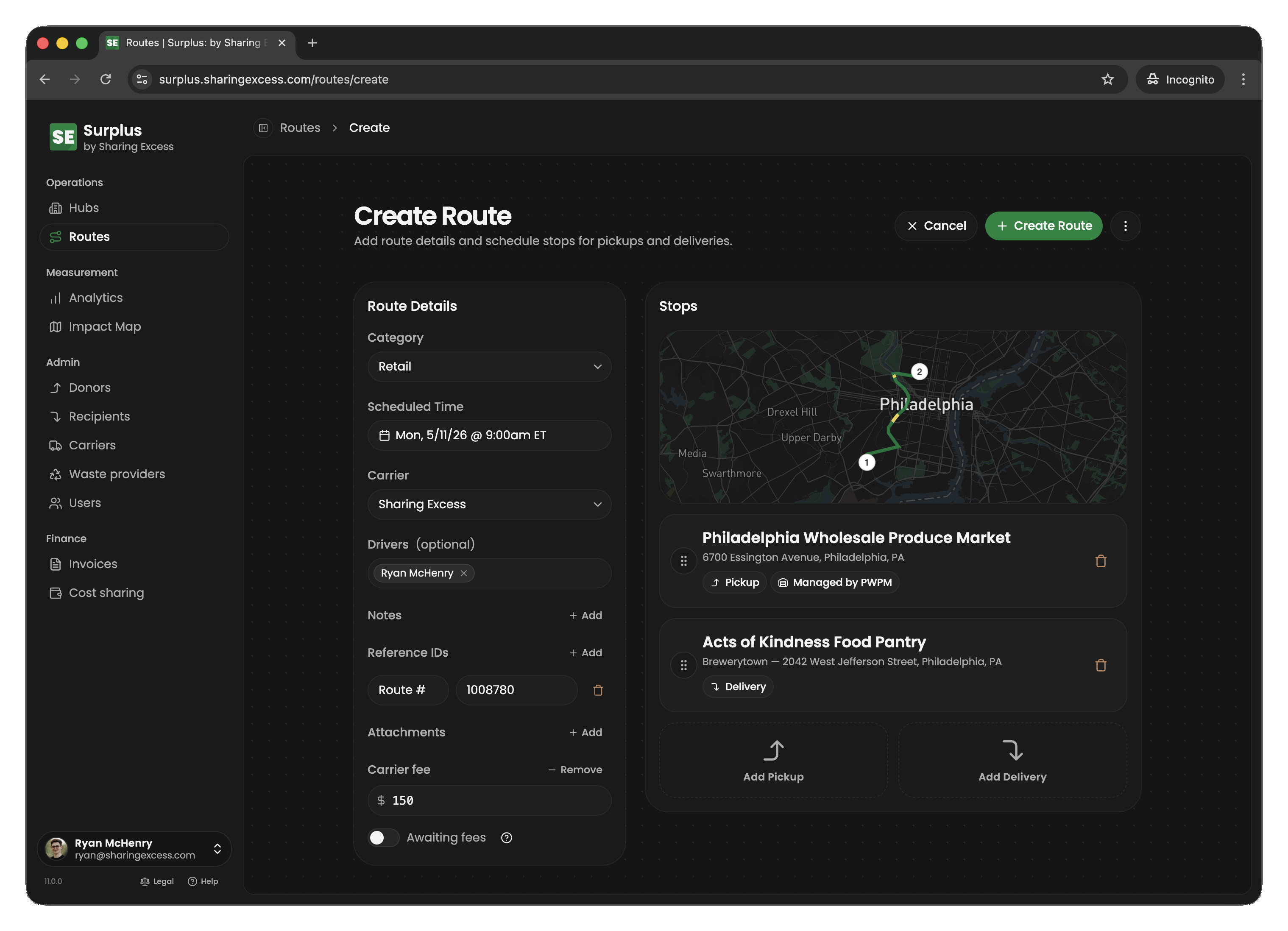
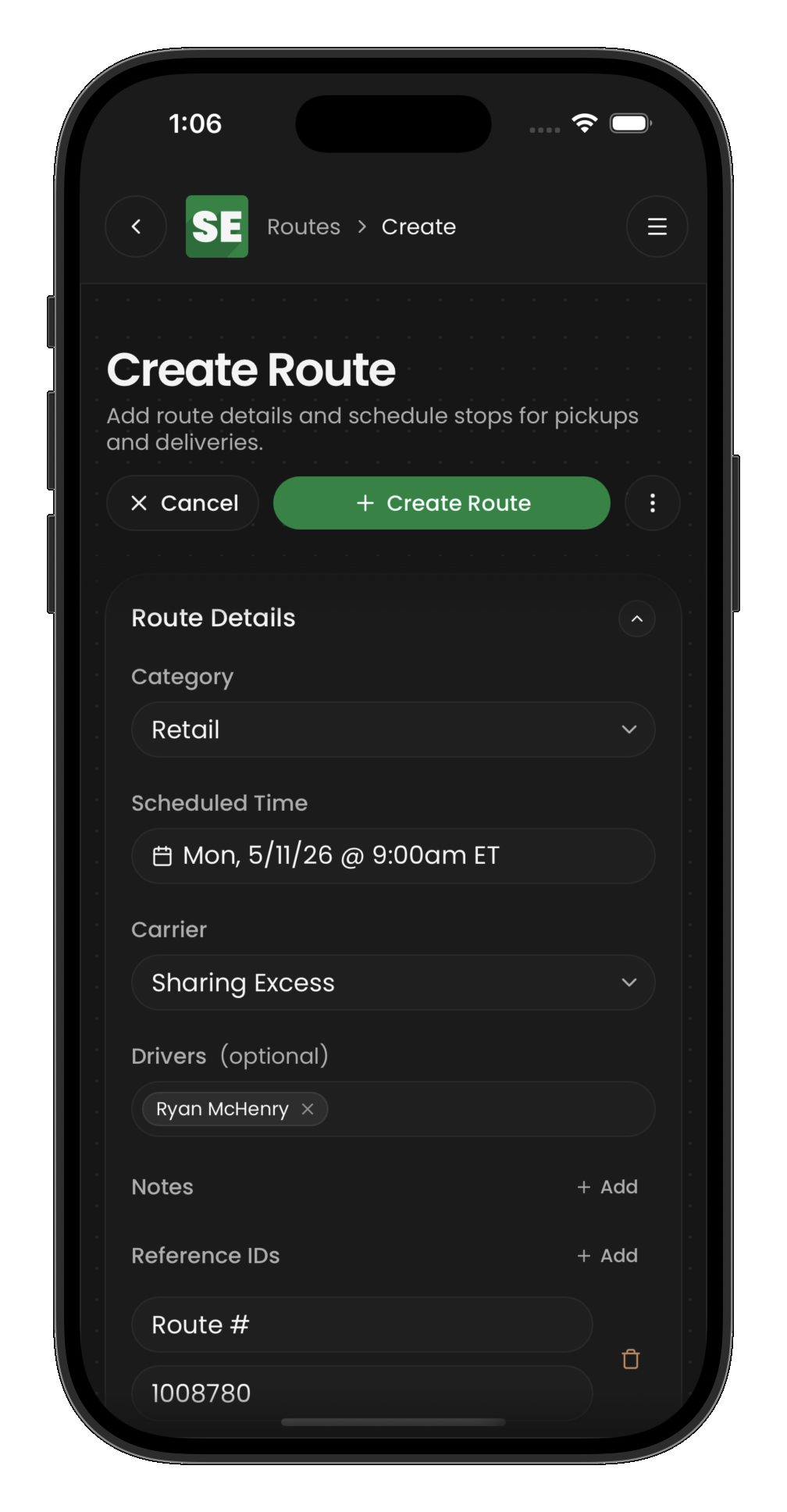
To create a new route:
- Open the routes section and tap Create route
- Set the scheduled date and time
- Optionally assign a carrier and drivers
- Add stops in the desired sequence
Stop types
Each stop you add must be one of:
| Type | Purpose |
|---|---|
| Collection | Pick up food from a donor location |
| Distribution | Deliver food to a recipient location |
| Load | Pick up staged inventory from a hub |
| Unload | Drop off items at a hub |
Stop ordering
Stops execute in sequence. Consider the logical flow:
- Collections before distributions (you need food before you can deliver it)
- Loads before distributions that reference that hub (hub-connected deliveries require the load to happen first)
- Unloads after collections if food needs to go through a hub before redistribution
Route lifecycle
| Status | Meaning | Transitions |
|---|---|---|
| Draft | Still being planned. Needs a scheduled time and one stop; no carrier yet | → Scheduled, → Cancelled |
| Scheduled | Planned, not started. Needs a carrier, a pickup and a delivery | → Active, → Draft, → Cancelled |
| Active | In progress (driver is on the road) | → Completed, → Cancelled |
| Completed | All stops done, vehicle empty | → Active (admin or driver un-complete) |
| Cancelled | Abandoned (terminal) | None |
Related guides
- Edit route stops — modify stops after creation
- Assign drivers and carriers — staffing routes
- Cost sharing and carrier fees — carrier fee and rate setup